
Sometimes it’s a simple visualization of your sequence that you need or you want to quickly annotate an interesting part of your sequence to investigate later.
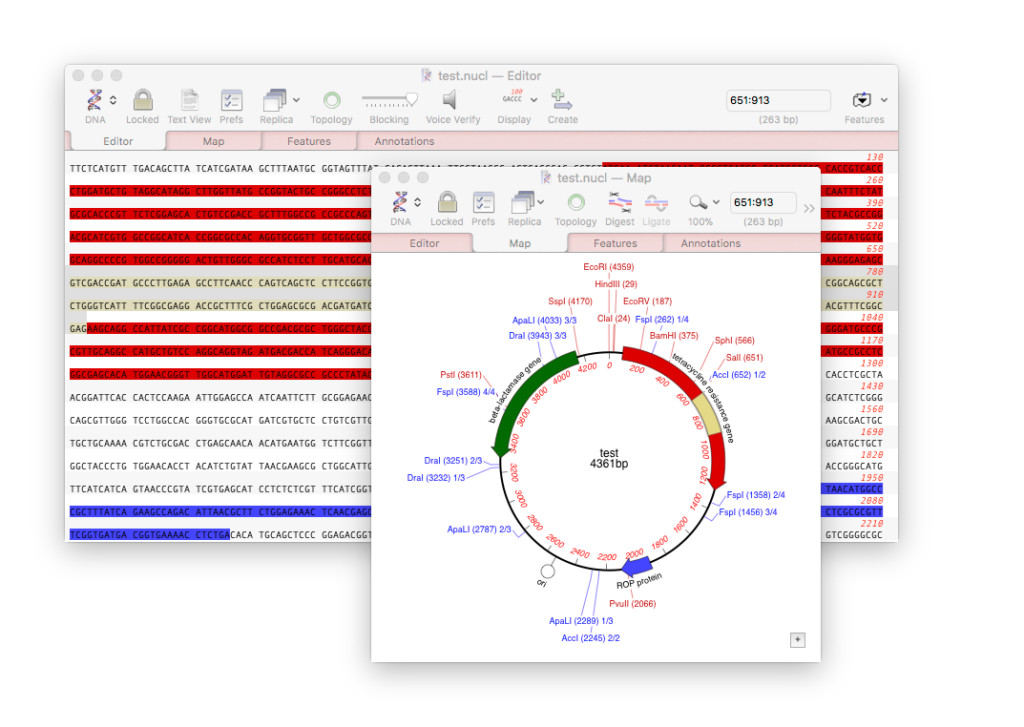
So in addition to displaying a rich visual representation of your sequence and its features in the Map tab, MacVector can also show specific regions directly in the Editor tab. For instance, you can highlight CDS features with a colored background.
You can also quickly annotate any region of interest in your sequence right in the Editor tab. For example, you can show introns in lowercase sequence.
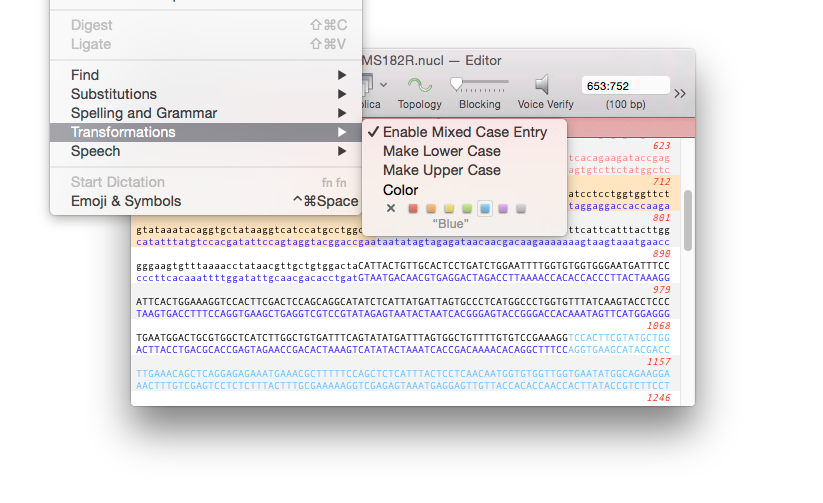
To show features in the Editor tab
- Choose MacVector | Settings and select the Color pane.
- In Sequence Editor change Features to Color Residues or Color Background.
To enter sequences as mixed case.
- Enable Edit | Transformations | Enable Mixed Case Entry
- Type your sequence using SHIFT or CAPS LOCK
To color a region.
- Select the region you want to highlight.
- Choose Edit | Transformations | Color.
To remove the color from a region.
- Use the Replica toolbar button to open a new window of the Map tab.
- Select the feature corresponding to the one you want to remove.
- Click DELETE or BACKSPACE.
To change the case of a region.
- Select the region you want to change to lower case.
- Choose Edit | Transformations | Make Lower Case.
Note: you can use MacVector’s Scan DNA For.. tool to annotate your blank sequence with missing features, putative ORFs, restriction enzyme sites and primer binding sites.